Start Your Blooket Login in Seconds
A Blooket login gives teachers and students access to their saved account features, including question sets, game reports, stats, and collectible Blooks.
- Go to the official Blooket login page.
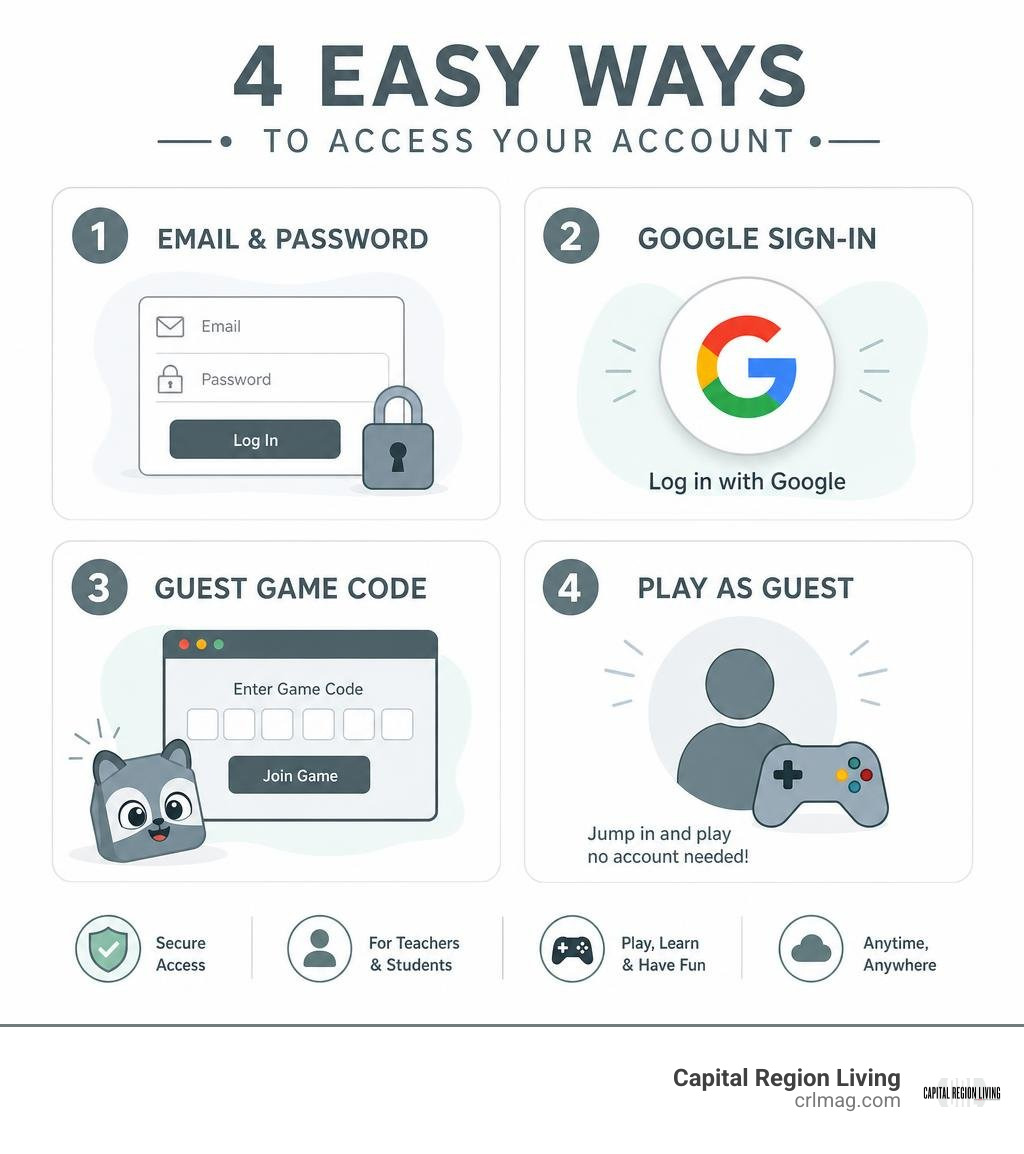
- Sign in with your email and password, or select Log in with Google.
- Once signed in, Blooket opens the dashboard for your account type.
Blooket, pronounced “Blue-kit,” is a web-based learning game platform. Teachers can host quiz games or assign activities, while students can play live using a game code. An account is useful, but it is not always required: players can usually join a live game as guests at the Blooket play page with a host-provided code.
This guide explains the fastest way to sign in, the difference between logging in and joining a game, and what to do when access does not work as expected.
How to Access Your Blooket Login: 3 Easy Steps
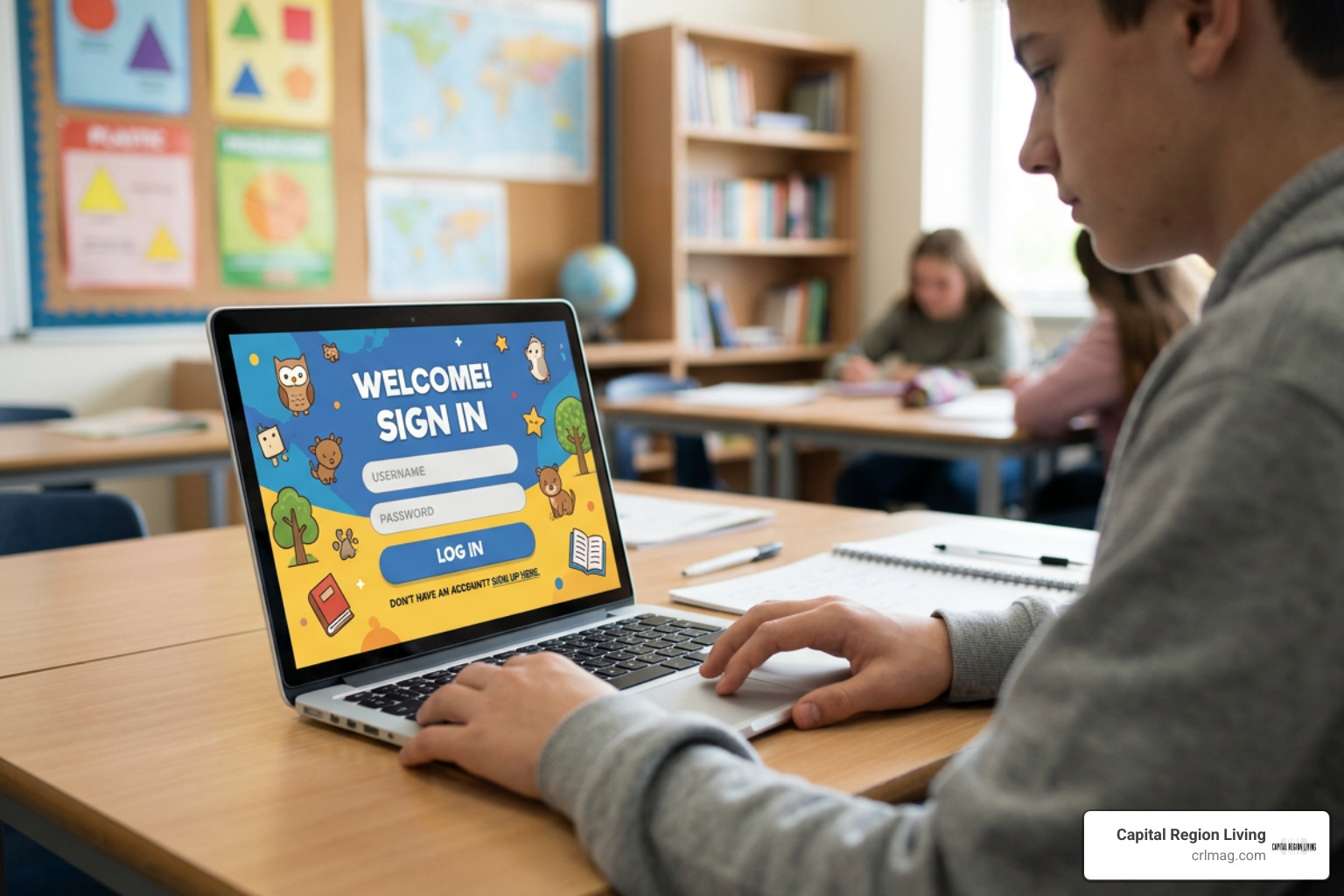
Getting into your account should never feel like solving a complex calculus problem. Whether you are an educator getting ready for a morning review or a student aiming to unlock the latest Blook, our How to Login to Blooket Step-by-Step Guide breaks down the core sign-in process into three straightforward steps.
Step 1: Navigate to the Blooket Login Portal
The most critical step in avoiding sign-in headaches is making sure you land on the right web address. To access your profile, open your preferred desktop or mobile browser and type id.blooket.com/login directly into your address bar.
Many users accidentally type general search terms or land on the student gameplay page (play.blooket.com), which is intended strictly for entering game codes rather than managing accounts. For a deeper look at navigating official domains safely, check out this comprehensive Blooket Login and Sign-In Guide.
To save time in future sessions, we strongly recommend bookmarking the direct authentication page in your browser. This simple habit bypasses marketing landing pages, avoids potential typo domains, and gets you to your classroom tools faster.
Step 2: Choose Your Blooket Login Method
Once you reach the official portal, you will see multiple ways to authenticate your identity. The platform provides flexible options designed to accommodate personal accounts as well as school network security protocols:
- Google Single Sign-On (SSO): Click the Log in with Google button. This is widely considered the fastest and most secure method, especially for students and teachers using school-issued Google Workspace accounts.
- Clever Integration: If your school district utilizes Clever for centralized application management, you can sign in directly through your district portal tile (provided your IT administrator has enabled the integration).
- Username or Email Credentials: Enter the registered email address or custom username you selected during registration, followed by your secret password.
Always choose the exact authentication method you selected when you first created your profile. For instance, if you registered using Google SSO, entering your email and password manually in the standard credential fields may trigger an error.
Step 3: Access Your Dashboard and Account Features
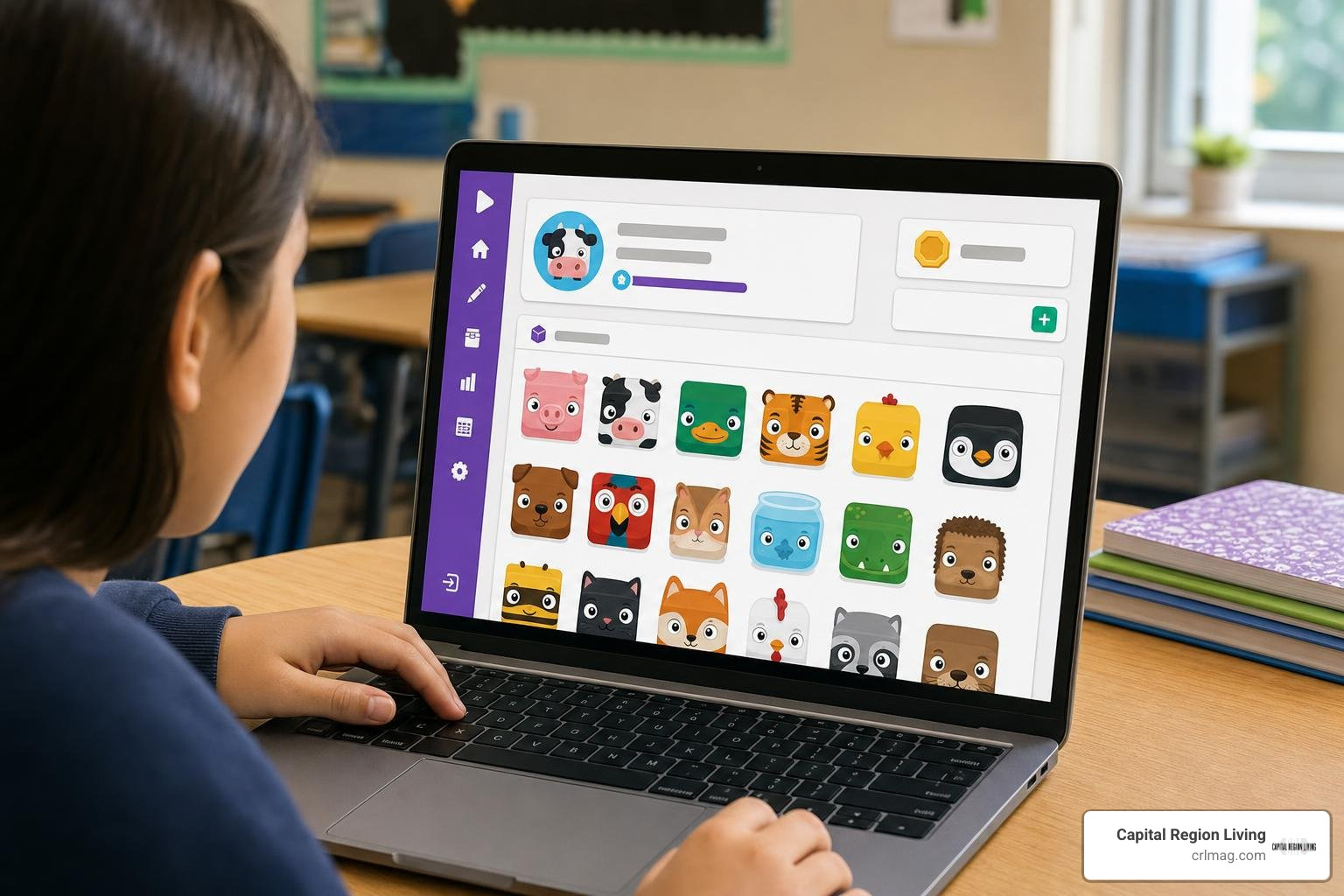
After submitting your valid credentials, the system redirects you to your personalized account hub within three to five seconds. This hub displays tailored tools depending on whether you are registered as an educator or a student.
From here, educators can browse thousands of pre-built question sets or construct custom study sets, while students can view their current token balance, check market rotations, and inspect unlocked character Blooks. To explore every feature waiting behind your sign-in screen, read our Bloket Dashboard Feature Guide.
Student vs Teacher Accounts: Sign-Up and Account Creation
When registering on the platform for the first time, selecting the correct role is essential because it dictates your permission levels and user interface.
| Account Feature | Student Account | Teacher Account |
|---|---|---|
| Primary Focus | Collecting Blooks, playing games, tracking stats | Creating question sets, hosting live games, viewing reports |
| Minimum Age Requirement | 13+ (US) or 16+ (International)* | 18+ (or verified educator status) |
| Game Hosting Capabilities | Limited / Solo modes | Full live game hosting & asynchronous homework assignment |
| Classroom Management | Join classes created by teachers | Create classes, import rosters, manage student access |
| Cost | 100% Free | Free tier available (Blooket Plus upgrade optional) |
*Note: Students under the required age limit participate in games as guest players via join codes supplied by their teachers.
Creating a New Blooket Account
Setting up a fresh account takes roughly two minutes. Follow these mandatory guidelines during registration:
- Age Verification: Federal privacy regulations (such as COPPA) require users to be at least 13 years old in the United States (and 16 in most international regions) to create an independent account.
- Email Address Selection: You must use an active email account capable of receiving external messages. Many student school email addresses are configured by district IT departments to block outside incoming mail. If your school email cannot receive external messages, use Google SSO or register with an unrestricted address.
- Email Verification Code: The system will send a numerical verification code to your inbox. Do not close your registration browser tab while retrieving this code, as exiting early forces you to restart the process.
- Credential Setup: Pick a unique username (do not use your full legal name for privacy reasons) and set a secure password.
Student Login vs Teacher Login Controls
Once authenticated, the platform tailors the experience to match your registered role:
- Teacher Accounts: Educators gain access to powerful authoring tools. They can host live sessions for up to 60 players on the free plan, schedule self-paced homework assignments, track individual accuracy percentage through post-game analytics reports, and organize student rosters into dedicated classes.
- Student Accounts: The student interface emphasizes personal achievement and engagement. Students can track their overall accuracy, monitor game history, spend earned tokens in the Market store to unlock rare character Blooks, and participate in global seasonal event boards.
Blooket Login vs. Blooket Join: Playing Games Without an Account
One of the platform’s greatest strengths is its low barrier to entry. Many first-time users confuse logging into an account with joining an active live game session. Understanding the distinction keeps classroom activities running smoothly.
- Blooket Login (
id.blooket.com/login): Requires an email, username, or SSO connection. Saves earned coins, unlocks permanent cosmetics, tracks historical stats, and enables game hosting. - Blooket Join (
play.blooket.com): Requires no password or email address. Players simply type a temporary 6-digit access code and a temporary nickname to drop directly into a live match hosted by someone else.
Joining via 6-Digit Game Code
If your teacher is hosting a live session and you do not have an account, you can jump into the action in seconds:
- Open your browser and navigate to
play.blooket.com. - Obtain the temporary 6-digit numerical Game ID generated on your teacher’s screen.
- Type the code accurately into the join field (ensure no leading or trailing spaces are attached).
- Enter an appropriate nickname as instructed by your game host.
- Click the join arrow and wait in the game lobby for the host to launch the round.
For a detailed breakdown of guest rules and technical details, check out this guide on Playing Blooket as a Guest Without an Account.
Benefits of Logging In vs Guest Mode
While guest mode is convenient for quick review games, logging into an authenticated account offers substantial advantages for regular players:
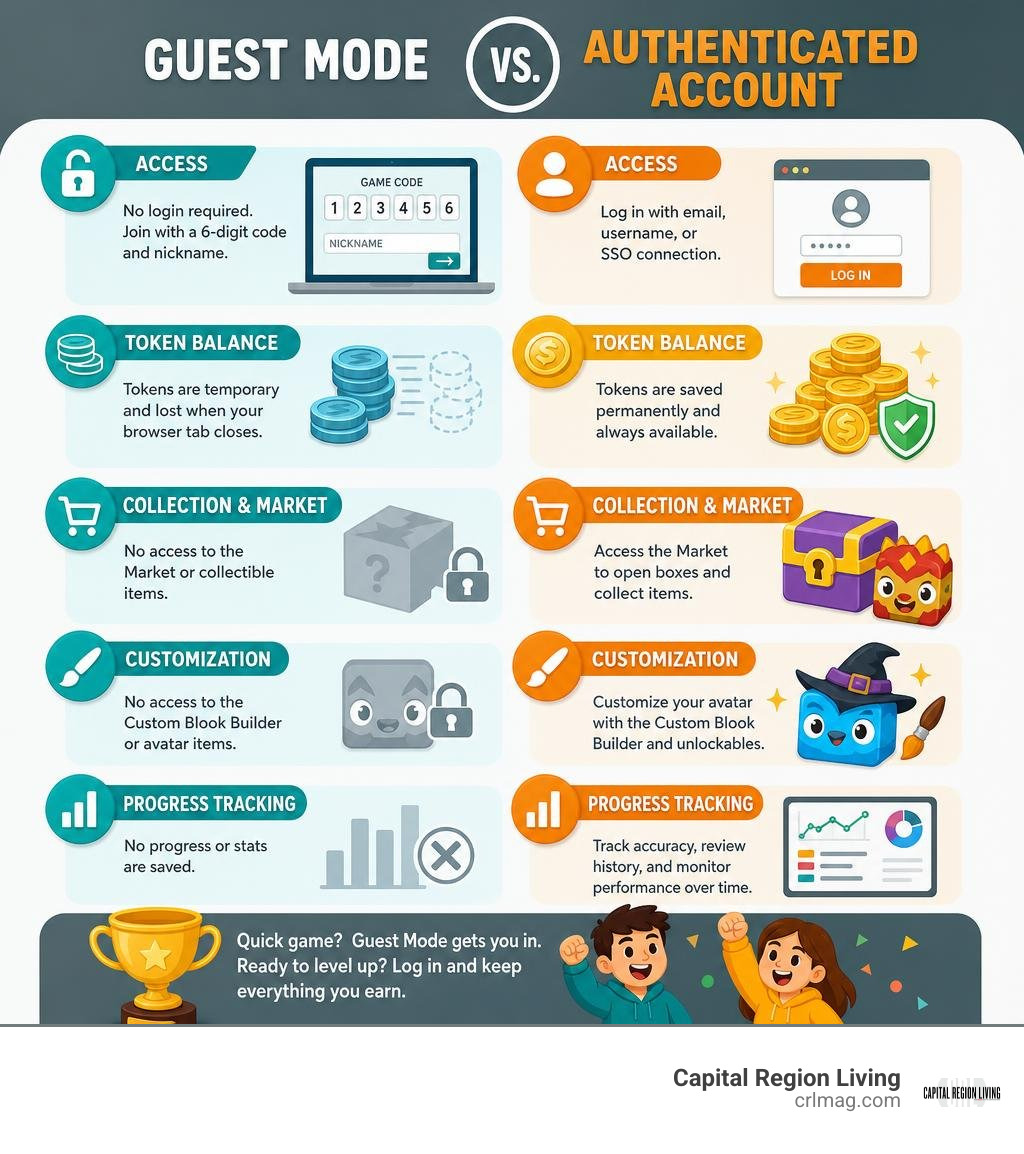
- Permanent Token Balance: Every correct answer in a live game or homework mode awards virtual tokens. Guests lose these tokens the moment their browser tab closes, whereas logged-in users bank them permanently.
- Blook Collection & Market Access: Tokens earned on logged-in accounts can be spent in the Market to open character boxes. These boxes yield collectible Blooks ranging in rarity from Common to elusive Legendary and Chroma tiers.
- Custom Blook Builder: Logged-in players can customize their avatar appearances on their Stats dashboard using Class Pass unlockables.
- Long-Term Performance Tracking: Teachers and students with active logins can review historical accuracy metrics to identify academic strengths and subject areas needing extra review.
Troubleshooting Common Blooket Login Issues
Encountering a blank screen, an infinite loading spinner, or an error message when trying to access your dashboard can be frustrating. Fortunately, most authentication errors stem from four common causes: incorrect credentials, browser cache clutter, Google SSO mismatches, or unverified email addresses.
If technical glitches interrupt your access, consult this guide on Fixing Blooket Sign-In Technical Issues.
Password Resets and Account Recovery
If you enter the wrong password repeatedly, the platform will temporarily lock your account for roughly 15 to 30 minutes after 5 to 10 failed attempts to protect against brute-force attacks. To regain access without waiting:
- Navigate to the main login portal and click the Forgot Password? link located below the credential entry fields.
- Enter the exact email address associated with your registered profile.
- Check your inbox for an automated account recovery message containing a secure password reset link.
- Click the link, construct a fresh password, and log back in.
Tip: If the recovery email does not arrive within two minutes, check your spam/junk folder. If you registered using a school email address, confirm with your school’s tech administrator that automated emails from blooket.com are not being blocked by network firewalls.
Fixing Browser Cache, Locks, and Blooket Ban Errors
When standard sign-in steps fail, execute these practical technical fixes:
- Perform a Hard Refresh: Press
Ctrl + F5on Windows/Chromebook orCmd + Shift + Ron Mac to force your browser to discard cached scripts and download a fresh copy of the login page. - Clear Cookies and Site Data: Corrupted session cookies frequently cause infinite redirect loops back to the sign-in screen. Go to your browser settings, clear cookies for
blooket.com, and attempt to sign in again. - Run a System Debug Diagnostic: Navigate to
debug.blooket.comin your web browser. This diagnostic tool inspects your local network connection and identifies whether school firewalls or content filters are actively blocking authentication scripts. - Address Account Ban Notifications: Account bans occur if platform security scripts detect automated bots, unauthorized browser hacks, or severe violations of community guidelines. If you believe your account was suspended by mistake, submit a formal support ticket at
help.blooket.comdetailing your username and situation.
Frequently Asked Questions About Blooket Login
For additional technical reference and community updates, explore the Blooket Login Portal Overview. Below are direct answers to the most common questions users ask about accessing their accounts.
Is Blooket free to use for students and teachers?
Yes, the core platform is completely free for both students and educators. The free tier allows teachers to host live games for up to 60 concurrent players, access thousands of public study sets, assign self-paced homework, and generate post-game accuracy reports.
For larger classrooms or expanded capabilities, paid upgrades are available:
- Blooket Plus (Individual Educator): Costs $36 per year (or roughly $5.99/month billed annually) and expands host limits up to 300 players per session, unlocks exclusive game modes, enables enhanced reporting, and grants bonus token multiplier multipliers.
- Group/District Plans: Available for entire schools and school districts seeking centralized administration, custom onboarding, and elevated host capacities up to $119.88/year per tier.
How do I log in to Blooket on a mobile device?
While there is no standalone native application in the Apple App Store or Google Play Store, the web application is fully optimized for mobile devices:
- Open Safari, Chrome, or Firefox on your smartphone or tablet.
- Navigate to
id.blooket.com/login. - Tap Log in with Google or enter your account credentials using the touch keyboard.
- Pro Tip: Tap your mobile browser menu (the share or settings button) and select Add to Home Screen. This creates a convenient app-like shortcut icon on your mobile device for one-tap sign-ins.
How do I safely log out or switch accounts on Blooket?
If you are using a shared classroom Chromebook or library computer, logging out protects your token balance and profile settings:
- Click or tap your profile avatar/username icon in the top right corner of your dashboard.
- Select Log Out from the dropdown menu.
- To switch between multiple accounts on the same computer, clear your browser cookies or open a new Incognito/Private window before signing into the second profile. This prevents Google SSO from automatically logging you back into the primary account.
Conclusion
Mastering your Blooket login is the key to unlocking an engaging world of gamified learning, whether you are an educator designing interactive classroom reviews or a student collecting rare Blooks. By bookmarking the official URL (id.blooket.com/login), selecting your preferred SSO or password authentication method, and understanding the clear distinction between logged-in accounts and guest play, you can eliminate technical delays and maximize study time.
At Capital Region Living, we love highlighting modern educational tools and community technology that make learning dynamic and fun. For more guides, community spotlights, and local business resources across New York’s Capital Region, explore our Capital Region Business Directory.